


The hardware is real
RetroXR turns emulation into something you handle. Instead of a menu, you get a room: a console on the floor, a CRT on the stand, cartridges on the shelf.
Spawn a system and a TV, run the A/V cable between them, push a cartridge into the slot and hit power. The picture comes up on the TV. Everything is physical — cables hang and swing, lids hinge open, discs sit in trays, and a cartridge has to go in the right way up.
What’s in the room
Section titled “What’s in the room”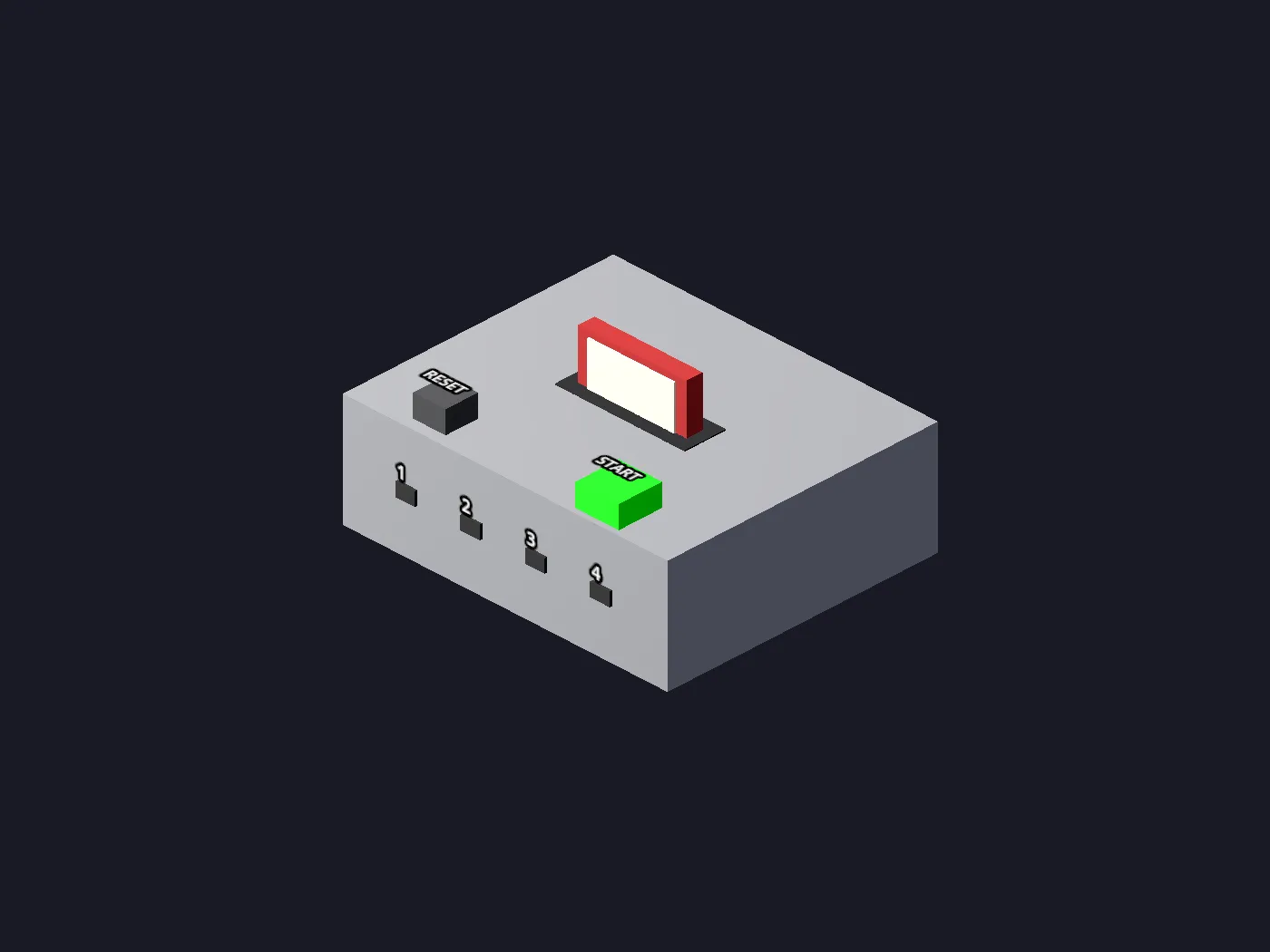
Consoles you plug in
Spawn a system, seat a cartridge, run the A/V lead to a TV and hit power. Wire it wrong and you get a blank input — because that is what would happen.
Cores, downloaded in-headset
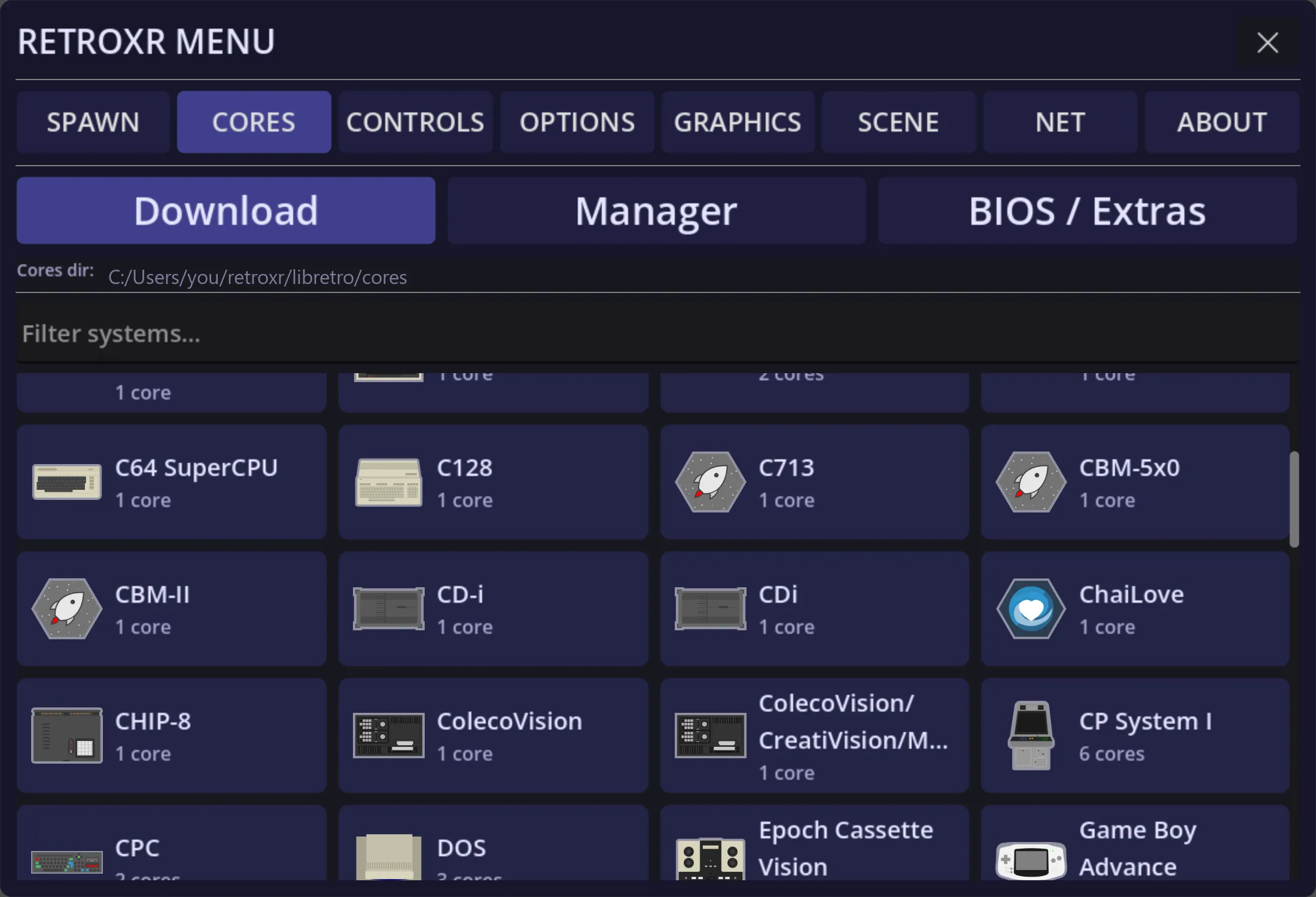
Powered by libretro, so it plays what libretro plays — NES, SNES, Mega Drive, PlayStation, Saturn, Dreamcast, GameCube, Game Boy, DS, 3DS, PSP and plenty more. No setting anything up on a PC first.
A default core per system
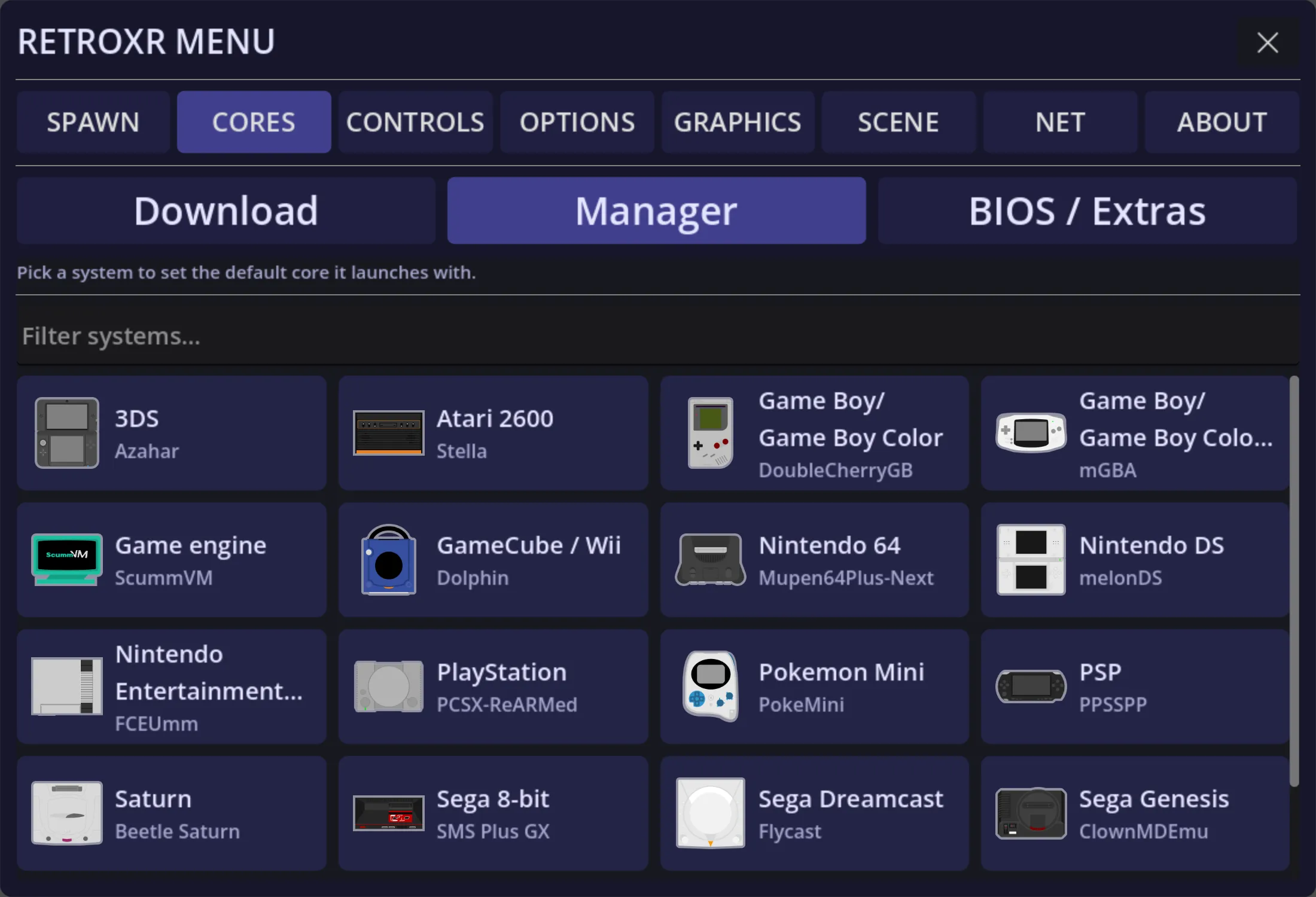
Some systems have several cores with different strengths. Pick the one each platform launches with, and set its options, without leaving the headset.
BIOS files, tracked
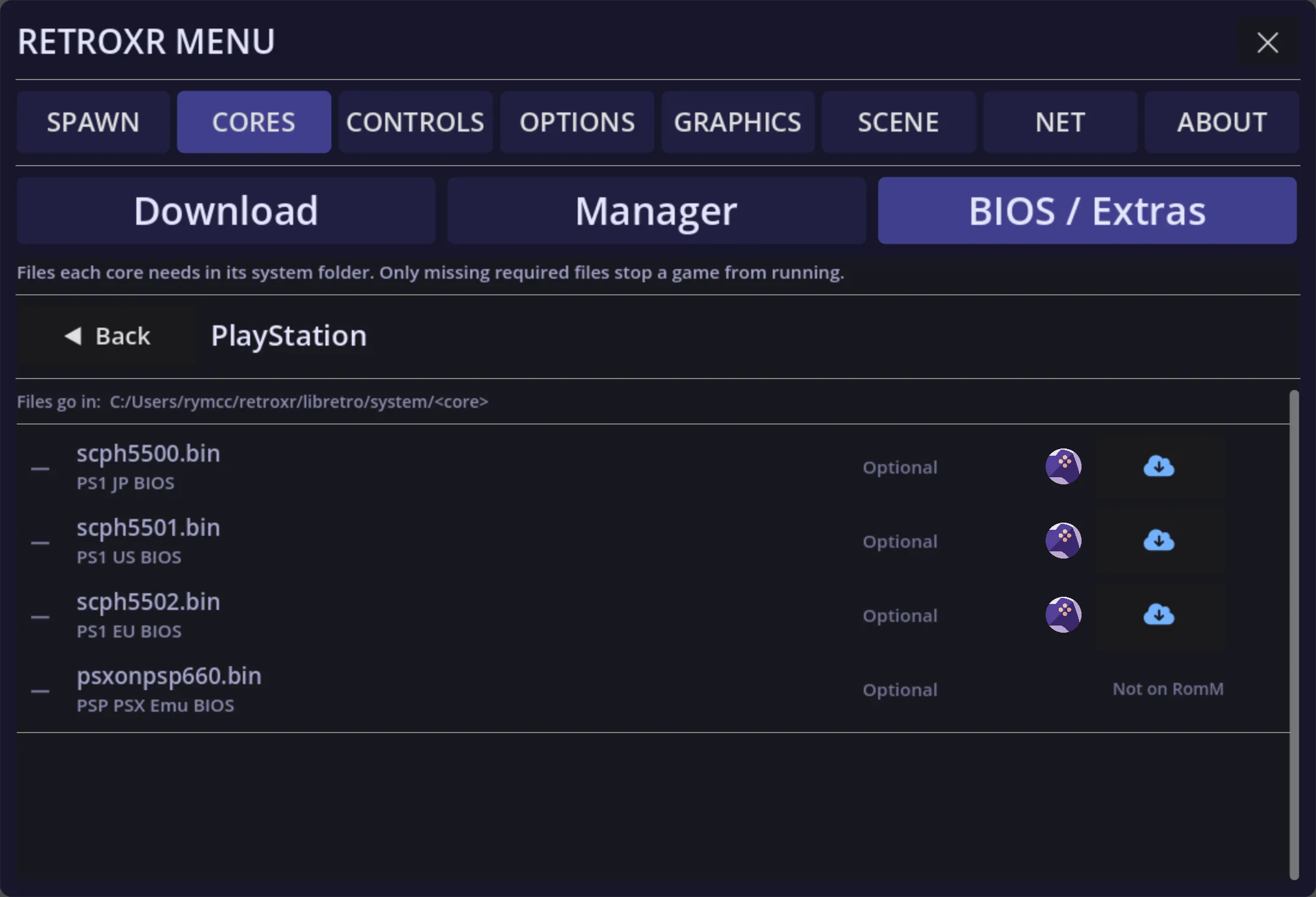
The systems that need a BIOS say so, file by file, and mark which are required and which are optional — instead of failing to boot with no explanation.
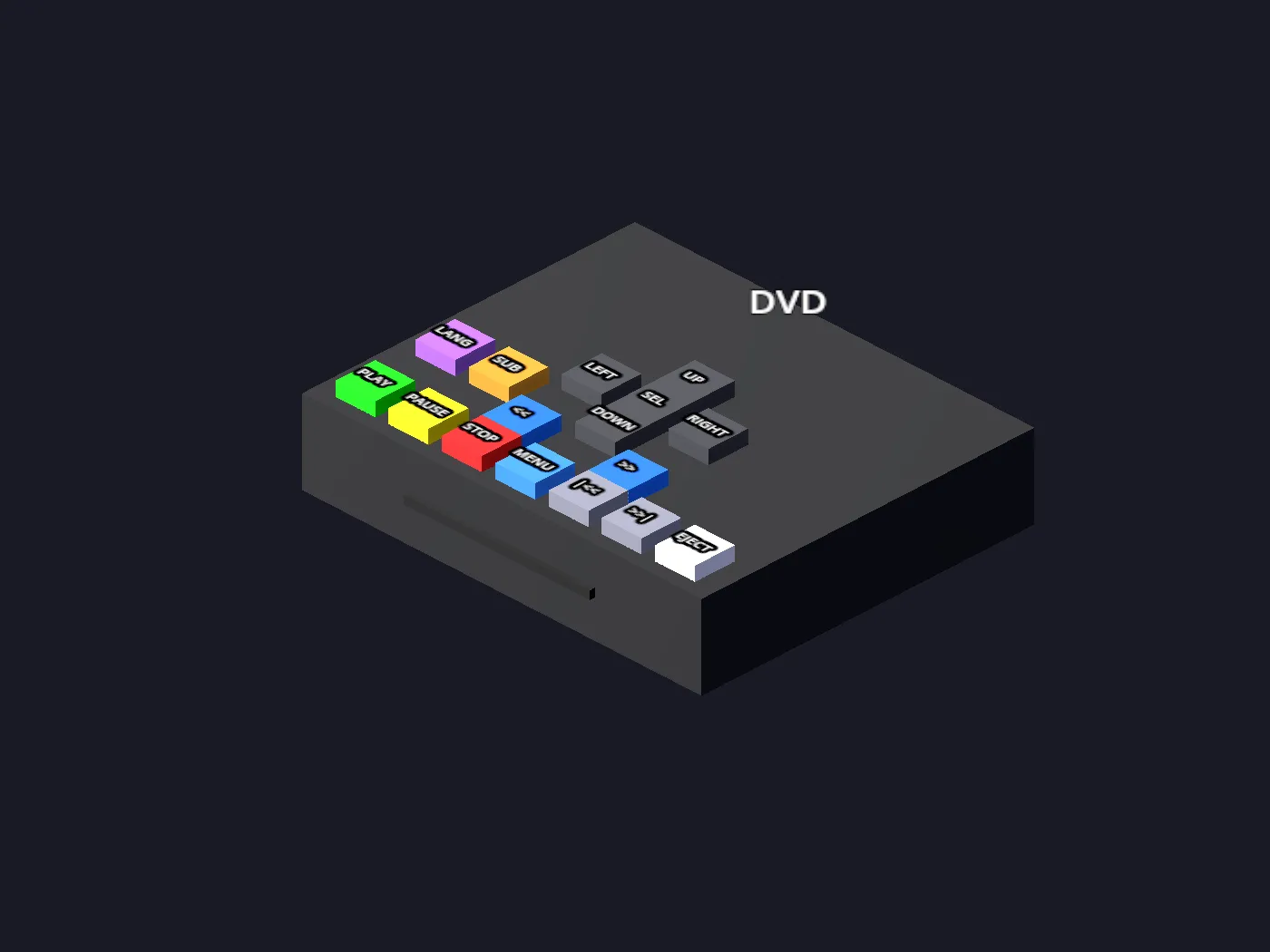
A DVD player that plays discs
Real disc menus and chapter navigation, driven by libVLC. Drop an ISO or a VIDEO_TS folder in, spawn a player and a TV, and wire them together.
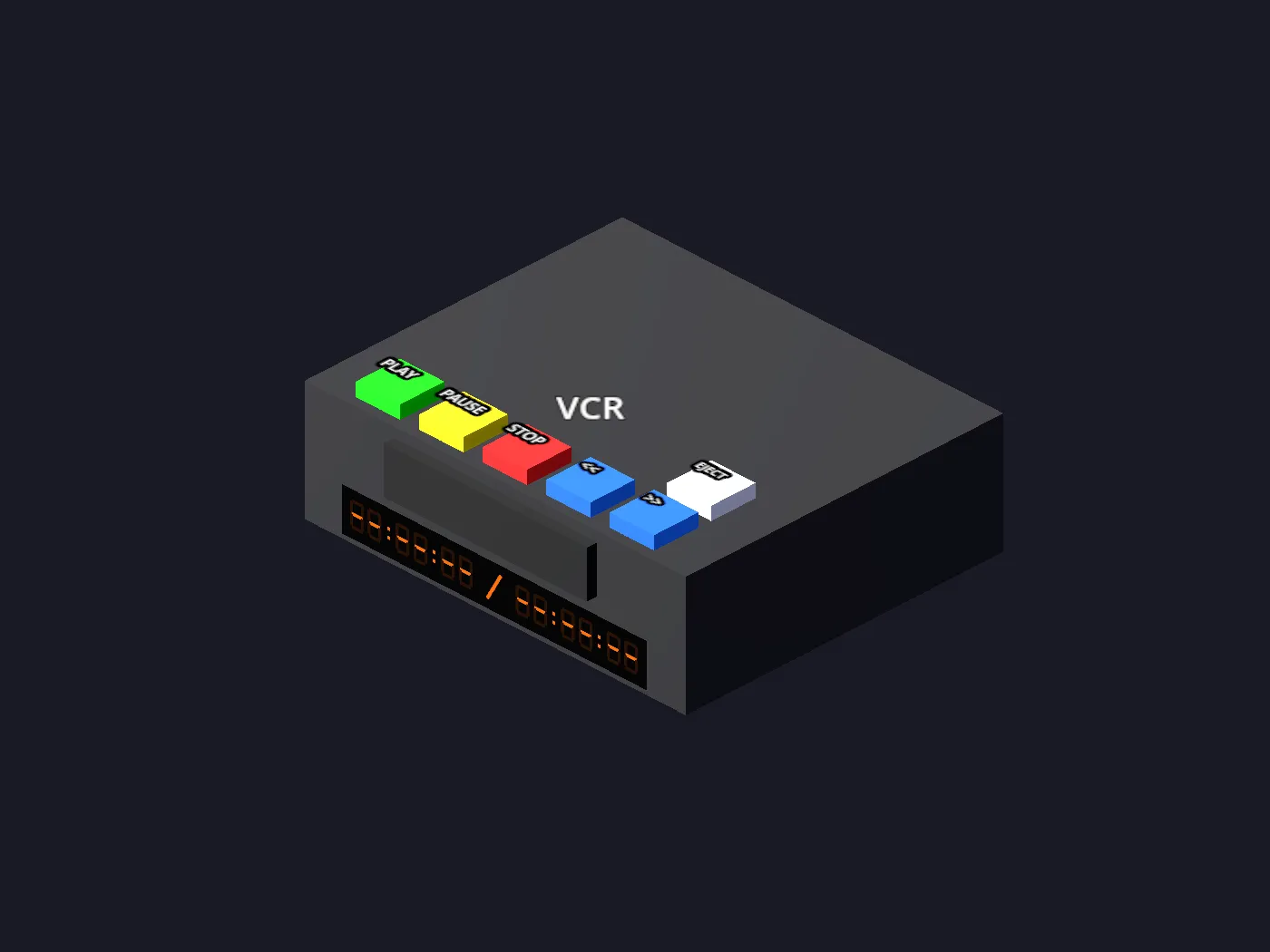
A VCR for your own tapes
Your video files become VHS tapes you push into a deck. Play, pause, rewind, fast-forward — and it renders onto whichever TV it is plugged into.
Books you actually turn
PDFs and CBZs are physical books. Grab a page by its outer edge and drag it across; release past halfway and the turn completes, short of it and it springs back.
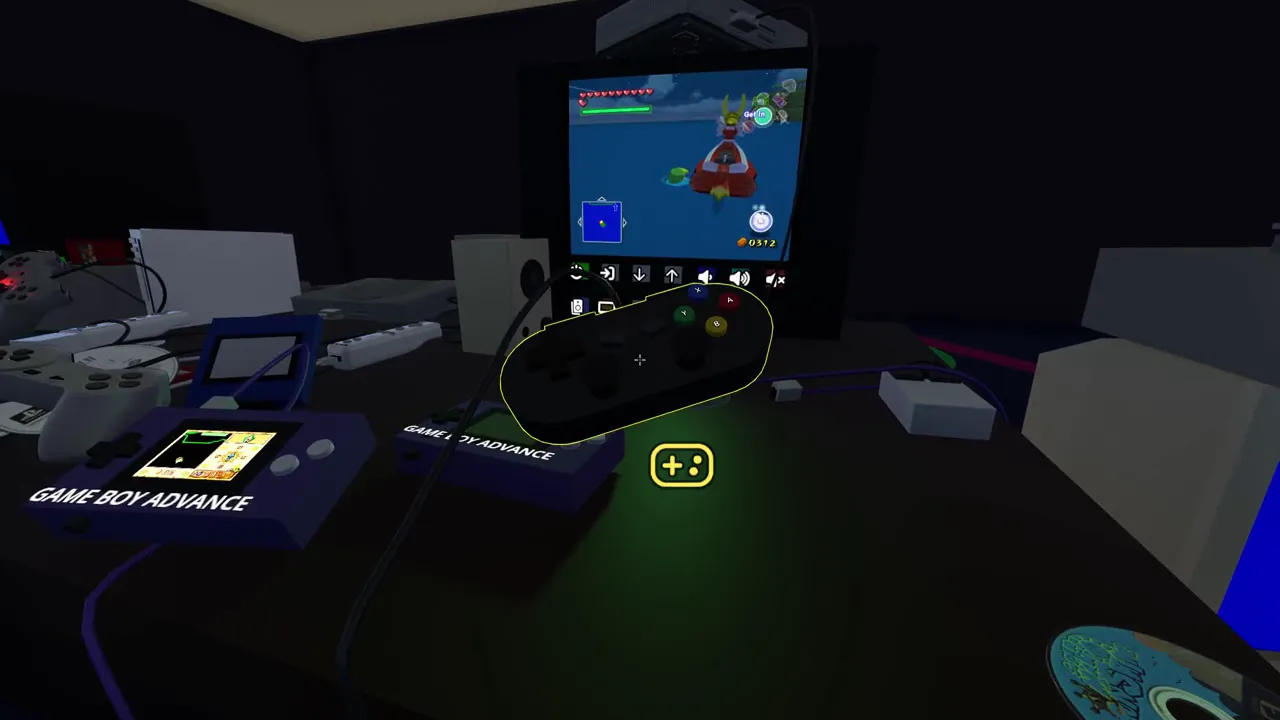
Link cables that carry real data
Run a lead between two machines and they talk — Game Boy to Game Boy, PlayStation to PlayStation, and a GameCube to up to four Game Boy Advances, cartridge or single-pak. Two consoles, two cores, one wire.
Add-ons you stack by hand
A Sega CD under a Mega Drive, a 32X in its slot, a 64DD, a Jaguar CD, a Super Game Boy, a Sufami Turbo taking two cartridges at once. Build the stack and the right core is chosen for you.
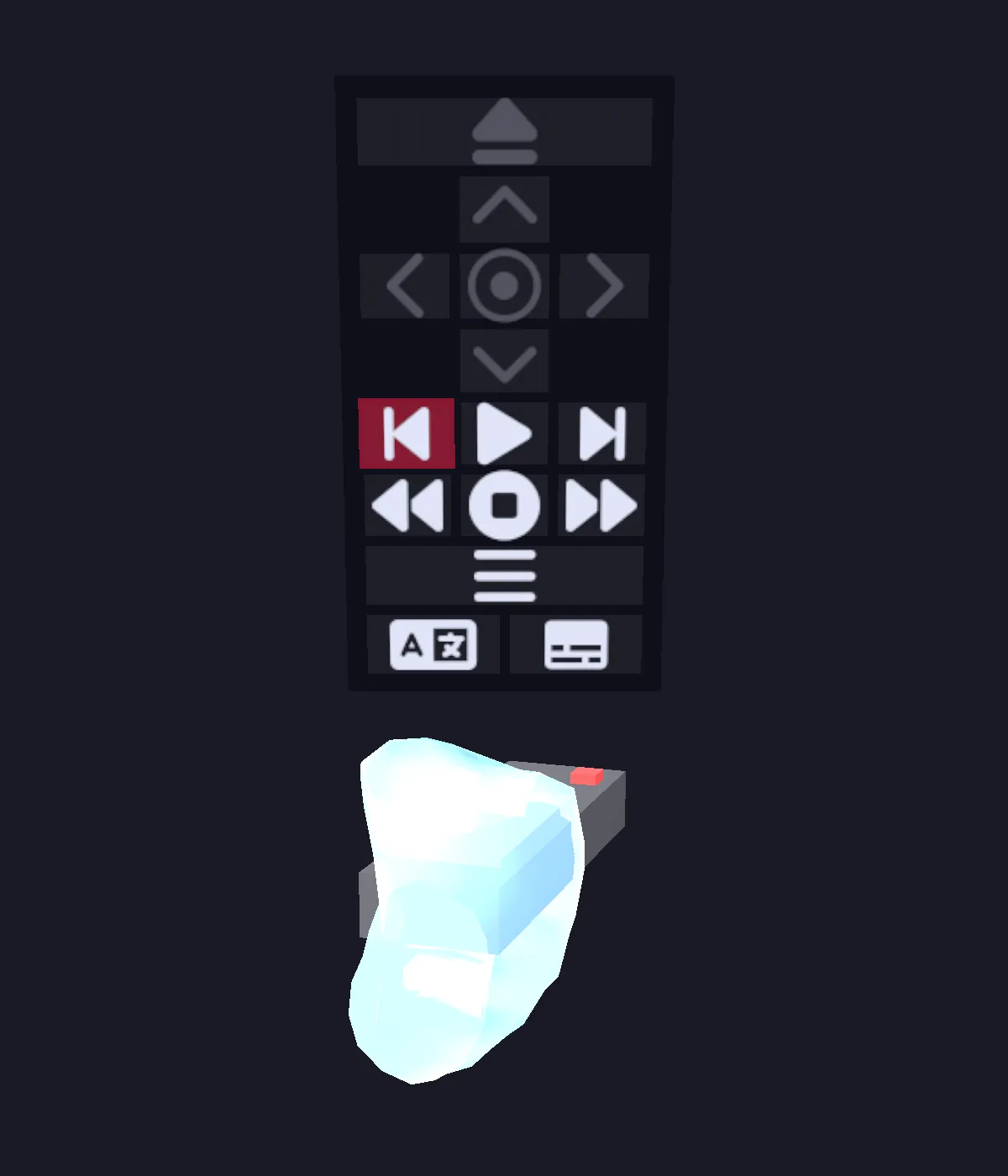
One remote for all of it
Point it at a TV, VCR, DVD player or tape deck and the right controls appear above it — including the disc’s own menus.
Running on a Quest 3
Section titled “Running on a Quest 3”All of these were recorded in the headset, standalone — no PC, no streaming. Each one is a machine spawned into the room, cabled up and played.
Bring your own everything
Section titled “Bring your own everything”Copy ROMs across over a web interface on your local network and they show up in the menu, ready to spawn into your room, with box art and scanned manuals if you have them.
Already running RomM? RetroXR connects straight to your server. Browse your whole collection from inside the headset, pull down just the games you want to play, and let your saves sync back — no cable, no shuffling files by hand.
The room does more than games, too. A working VCR and DVD player take your own video files, a CD player and tape deck handle music, and PDF manuals are books you can hold and page through.
This is early days
Section titled “This is early days”RetroXR is in active development, and it is honest to say so up front:
- Most consoles and controllers are clean procedural stand-ins rather than detailed replicas — fully playable, deliberately minimalist. A growing handful — the NES, the Atari 2600, the PlayStation and its two pads, the Wii Remote and Nunchuk — wear a real shell.
- Every room is a placeholder — somewhere to put your hardware, not a finished space.
- Tested on Quest 3. There is also a Windows desktop build with mouse and keyboard.
- Netplay is in, but it is very early. Treat it as a prototype rather than a feature.
- RetroXR ships no games and no BIOS files. You bring your own.
Help wanted — especially modelers
Section titled “Help wanted — especially modelers”The biggest gap in RetroXR is art, not code. Every grey box is a console someone could model properly, and the rooms are barely started.
If you model, this is where a contribution goes furthest — a single good room or console shell changes the whole feel of the app. Two rules, both firm:
- Models must be free of trademarked text and images.
- They must be licensed so the project can ship them.
Not a modeler? Bug reports with logs, documentation fixes, and testing on hardware other than a Quest 3 are all genuinely useful.
Come and say hello on Discord, or open an issue on GitHub.
Get started
Section titled “Get started”- Download and install — including a full walkthrough if you have never sideloaded onto a Quest before.
- Your first session — spawn a console, wire it up, and get a picture on the TV.
- Devlog — what is being built, and what just shipped.